
1 min read
Overview
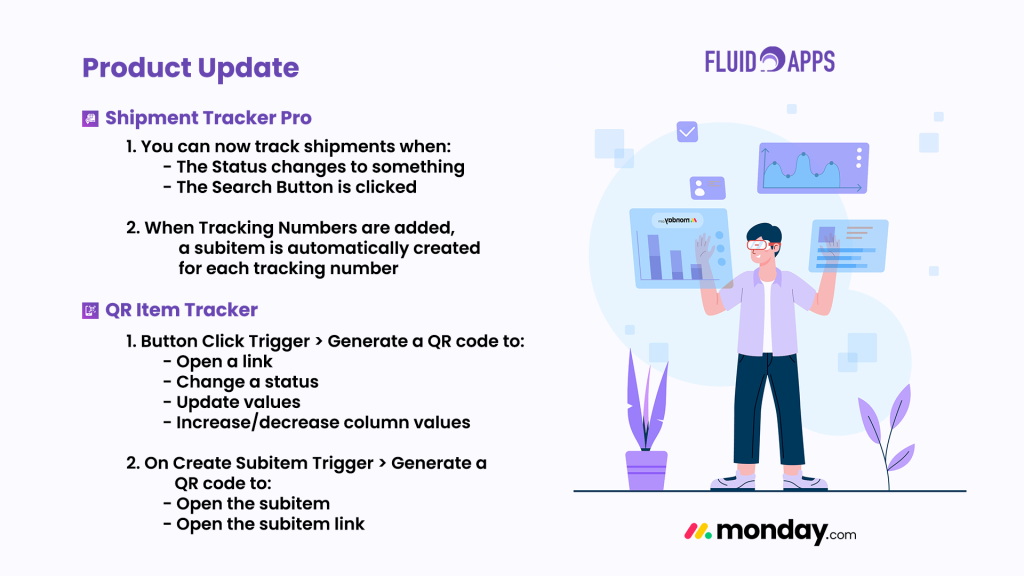
Shipment Tracker Pro has been updated to comply with monday.com’s latest migration requirements. If you’re an existing user, your old automations may no longer be working with the new API. This guide will walk you through setting up the new automation in just a few minutes.
Good news: All your existing tracking numbers and data are safe and saved on our servers—nothing will be lost.
What’s Changed?
- Old Shipment Tracker Pro automations are no longer compatible with monday.com’s updated API
- You’ll need to recreate your automations using the new system
- All your historical tracking data remains intact
Before You Start
- Access to your Shipment Tracker Pro board
- Admin or editor permissions in monday.com
Step 1: Re-authenticate
- Navigate to your Shipment Tracker board view
- Click the Settings tab
- Click Re-authenticate
- Follow the authentication prompts to reconnect your account
Step 2: Remove Old Automations
- Go to your board’s Automation Center
- Look for any existing Shipment Tracker Pro automations created before April 31, 2026
- Select each automation and click Delete
- Confirm the deletion
This prevents conflicts with the new automation setup.
Step 3: Create New Automations
- Open the Automation Center in your board
- Click Create Automation (or search for automations)
- Search for “Shipment Tracker Pro”
- Browse the available automations and select the ones you need
- Click Save once you’ve selected your automation(s)
Step 4: Verify Your Setup
- Check that your new automations appear in the Automation Center
- Test with a new shipment to ensure tracking is working
Troubleshooting
Still not working?
- Confirm re-authentication was successful
- Ensure all old automations were deleted before creating new one
Questions?
- Contact our support team or refer to the complete documentation